I build the systems other agencies sell.
Twenty years inside the work. SEO, paid media, AI automation, custom websites. One operator, direct to you. No account managers, no agency layer, no handoffs.
Twenty years. Two thousand sites. Fifty million in ad spend.
One operator. No handoffs.
One operator. No account managers. No handoffs. I build the systems other agencies sell — directly with you, end to end.
If you've ever paid an agency $5K/mo and felt like you were talking to a different person every week, that's the problem I exist to solve.
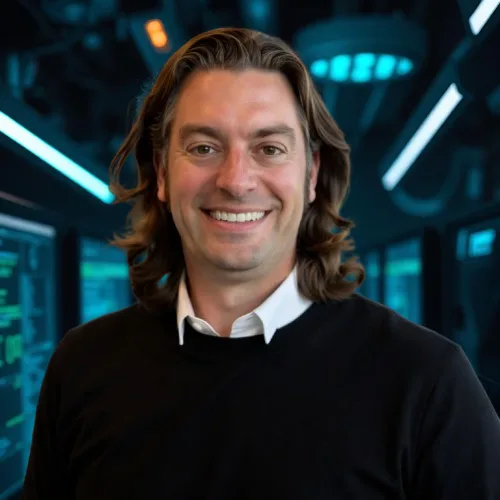 32.7157°N · 117.1611°W
Live · Derick Downs · Founder
32.7157°N · 117.1611°W
Live · Derick Downs · Founder
The hardest part is knowing what you want.
Check out some of the websites I manage on the daily.
OTBDA
Out-of-the-box AI agent systems for businesses that want the leverage without the learning curve.
↗NakSnacks
Real nak milk dog chews. Shopify build, paid search, and a brand voice dogs would approve of.
↗FollowPerClick
Branded CTA overlays on any link you share. Turn every click you send into your own traffic.
↗FollowPerView
The view-side sibling: attention analytics and retargeting on shared content.
↗ENQS
Enquiries, qualified and routed. Lead generation infrastructure that feeds real pipelines.
↗Ship a Pickle
Anonymously ship a pickle to anyone. Novelty commerce with a straight face.
↗Digital Forensics Today
The publication arm: forensics news, case law, and field analysis from the examiner side.
↗RB Tire & Brake
Full local-service build: hardened WordPress, local SEO, and phones that actually ring.
↗BidsList
Multiple certified bids on the same project. The marketplace behind the patent.
↗Full-stack growth, operator-led.
Nine ways I help businesses convert more, spend less, and stop guessing.
Search — SEO
Technical architecture, content systems and local dominance. Built to compound, not to report.
Paid Media — Google Ads
Search-term waste audits, conversion tracking that actually works, campaigns run against real revenue.
Web Engineering
Custom builds on whatever the job demands. WordPress, Shopify, Webflow, or raw code like this page.
AI & Automation
Agent systems, content pipelines and n8n workflows that remove the humans from the boring parts.
CRM Systems
GoHighLevel builds: lead flow, pipelines, follow-up automation. Every lead accounted for.
Digital Forensics
Mobile forensics, spyware investigations and expert-witness work through Octo Digital Forensics.
Local SEO
Google Business Profile, citations, reviews and map-pack dominance for businesses that live on local search.
Analytics & Tracking
GA4, GTM and conversion tracking that actually fires, so every dollar of spend is accountable.
Hosting & Care
Managed hosting, hardening, backups and uptime monitoring. Your site stays fast, clean and online.
Marketers guess. Examiners prove.
I'm also a digital forensics examiner. Mobile extractions, spyware investigations, expert-witness testimony. When your marketer has reconstructed evidence for a courtroom, "the data says" means something different.
Derick Downs
Wikipedia-notable entrepreneur — Pokeymongo, Follow Per Click, and a career of shipped ventures.
AuthorFlipping Domains
Published guide to buying and selling domains and websites as digital assets.
PressMedEsthetics Magazine
Featured on patient-centered financing and growth for med spa practices.
SpeakerAMA San Diego
Speaker at "Art of Marketing" and San Diego's Top Budding Entrepreneur award recipient.
Three steps. No mystery.
Most agencies make the process feel complicated to justify the price tag. It isn't.
Discovery call
Fifteen minutes. Tell me what you're trying to do. I tell you whether I can help and what I'd build.
Strategy & scope
Within 48 hours you get a real plan: what gets built, what it costs, what results look like, on what timeline.
Build & ship
I do the work. You see updates as it happens. No status meetings, no account manager filtering everything.
Stop wasting your money with digital agencies.
Talk directly to the operator. Get the answer, not a proposal. 15 minutes, real diagnostic: honest opinion on what to fix first, no SDR screening, no follow-up sales pressure. Walk away with one concrete fix.